> For the complete documentation index, see [llms.txt](https://pathta.gitbook.io/pathta-docs/llms.txt). Markdown versions of documentation pages are available by appending `.md` to page URLs; this page is available as [Markdown](https://pathta.gitbook.io/pathta-docs/pathta-documentation/creer-une-source-de-donnees/bubble-data-source.md).
# Bubble data source
Data source
Lecture
Ecriture
Suppression
Nécessite un customer agent
Bubble
true
true
false
false
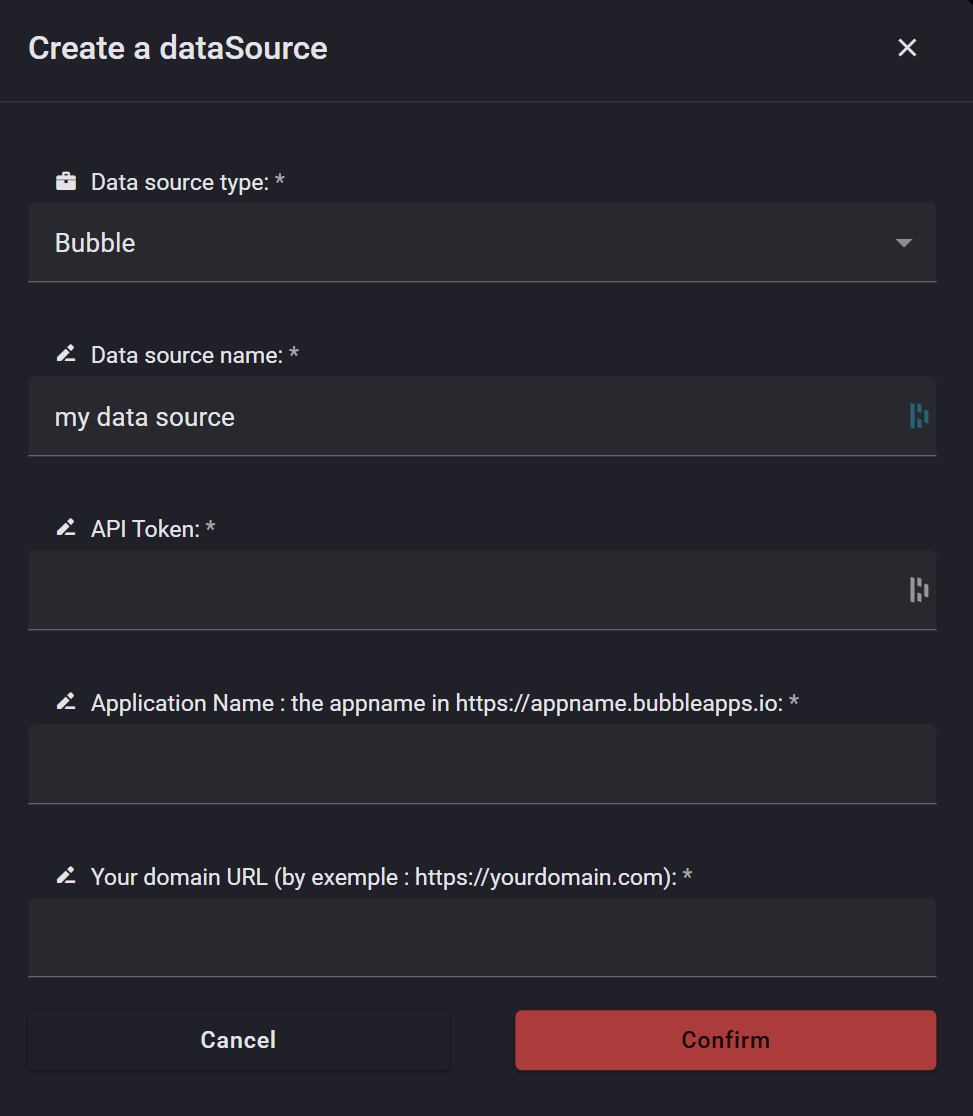
Il y a 4 champs à remplir :
1. **Data source name** : Choisissez un nom pour votre source de données : par exemple, « Ma source de données Bubble »
2. **API Token** : Utilisez un jeton d'accès personnel disposant des droits d'accès à la table que vous souhaitez utiliser dans Pahta. Vous trouverez votre jeton API dans les paramètres, sous l'onglet « API ».
Vous devez activer l'API de données :
3. **Application Name** :Nom de votre application :\
Si l'URL de votre application est Le nom de l'application sera « my-bubble-application »\
4. **Your domain URL :** Utilisez votre nom de domaine personnalisé si vous en possédez un : par exemple ou, à défaut, le chemin d'accès complet de votre application : par exemple